
How to Immediately Find Broken Links from Google’s Index (for Free)
Kirjoittanut Tapio Kauranen
Kirjoitettu: 21.7.2026 - Muokattu: 22.7.2026 Kirjoittanut Tapio Kauranen
Kirjoitettu: 21.7.2026 - Muokattu: 22.7.2026Sisällysluettelo
During a website redesign, the site structure typically changes. In such cases, you need to create redirects from the old URLs to the new ones.
Otherwise, links in Google’s Index will lead to a “404 – Page not found” page.
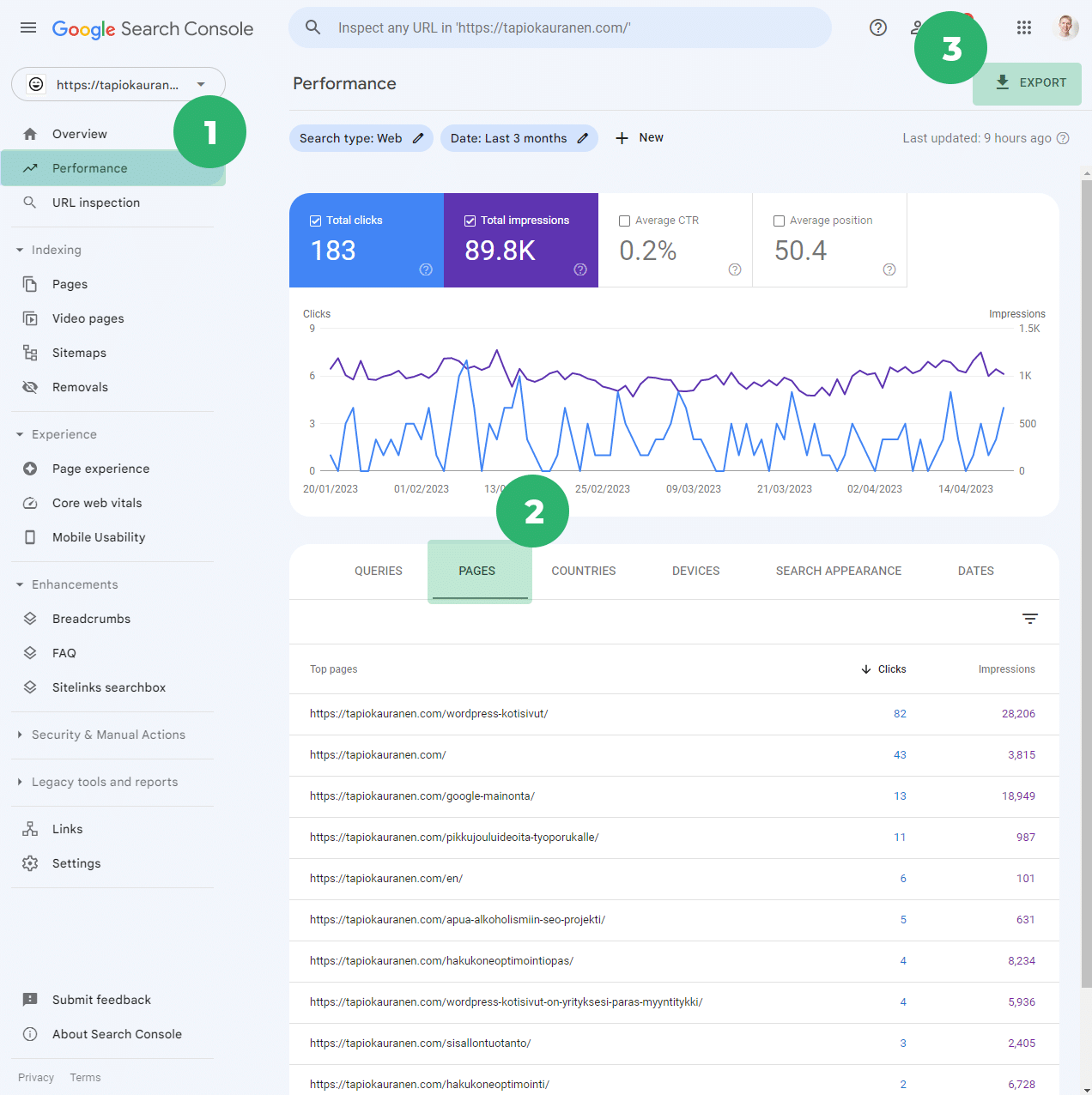
This information is visible in Google Search Console, but data in Search Console updates with a delay of several days.
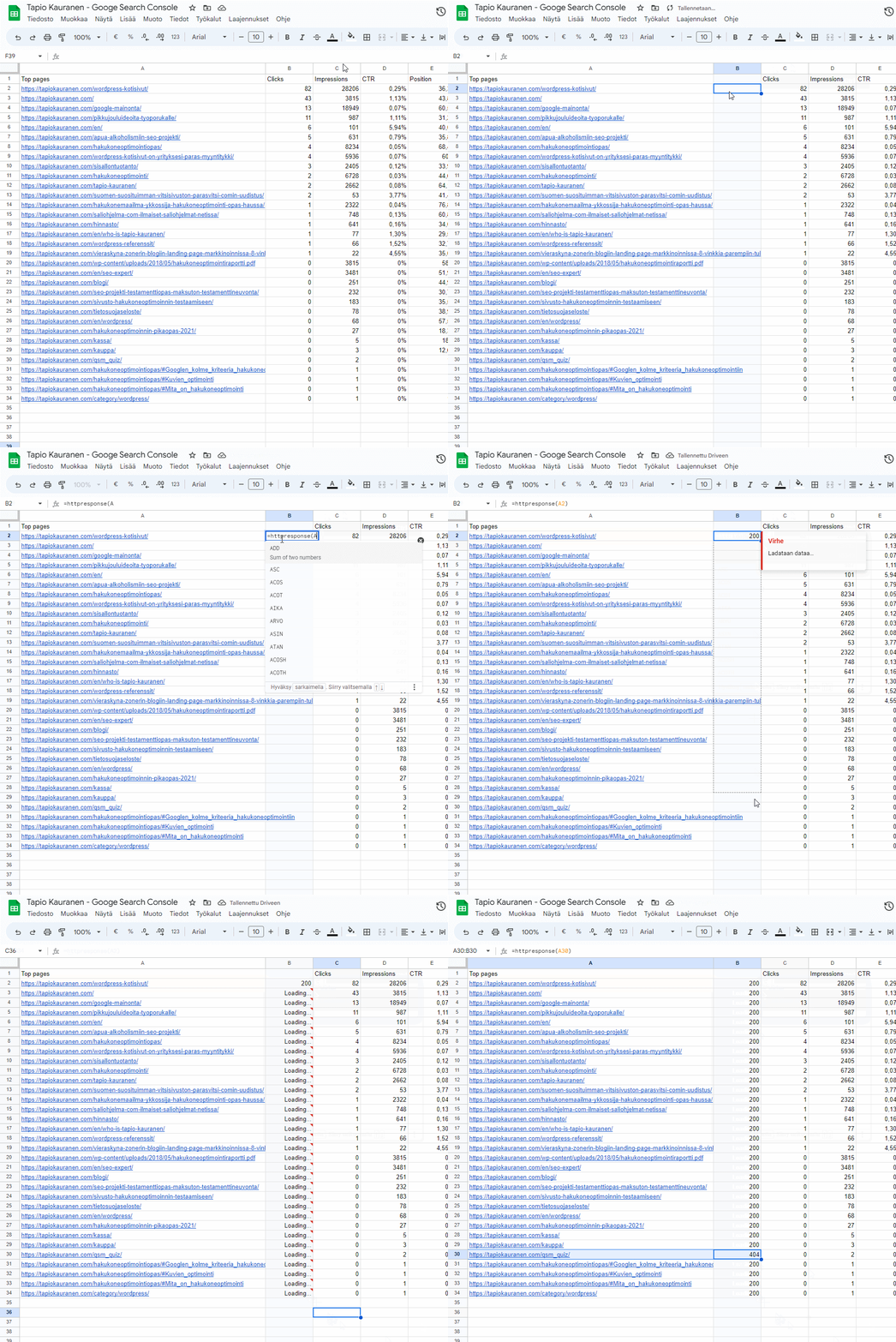
In this guide, I will show you how to create the script below, which checks the links in just a few seconds.
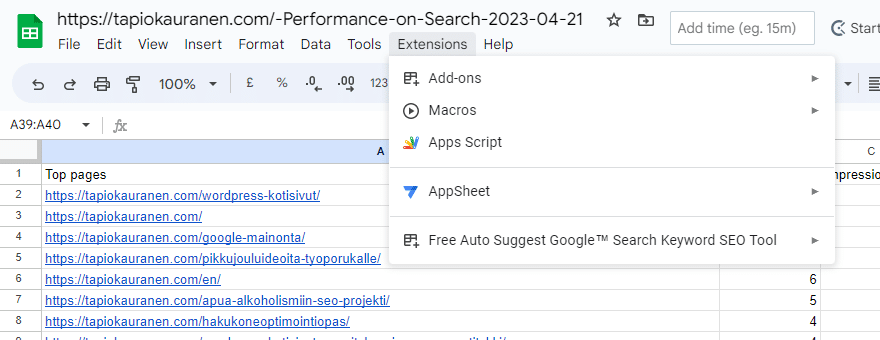
Click “Extensions” at the top of the site and go to the “Apps Script” section
function HTTPResponse( uri )

{

var response_code ;

try {

response_code = UrlFetchApp .fetch( uri ) .getResponseCode() .toString() ;

}

catch( error ) {

response_code = error .toString() .match( / returned code (\d\d\d)\./ )[1] ;

}

finally {

return response_code ;

}

}
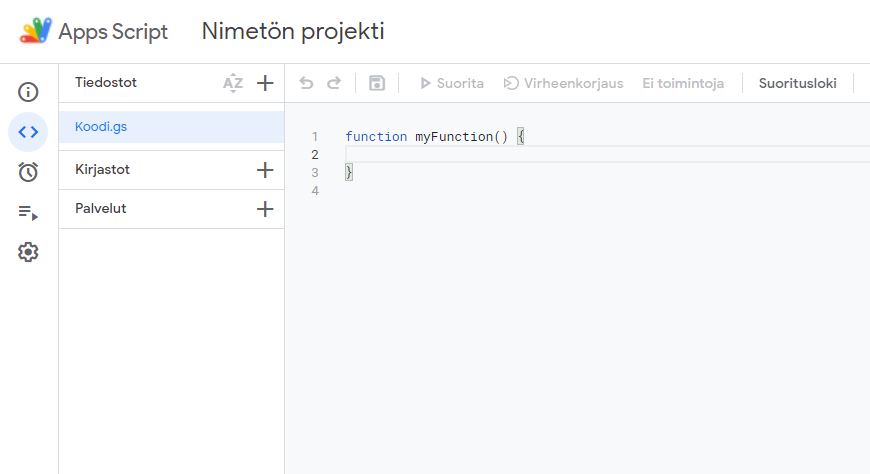
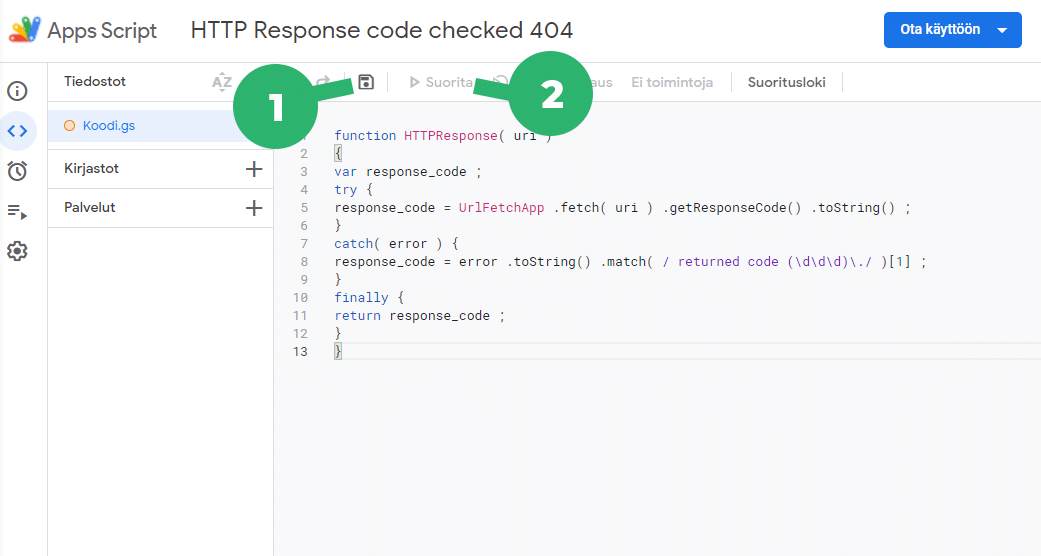
You can now use a new command called =httpresponse in this spreadsheet.
It allows Google Sheets to fetch the status of a URL address
What do the codes mean?